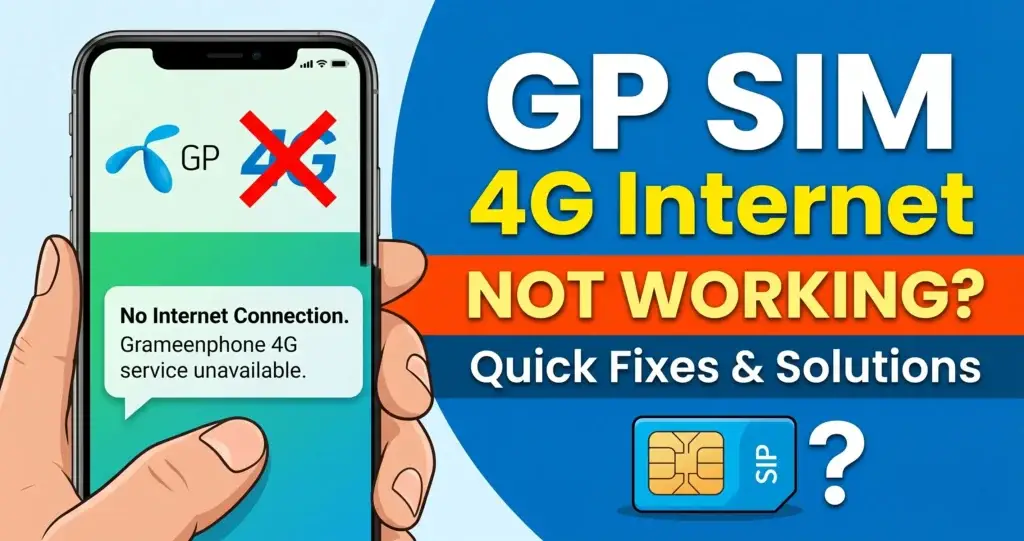
Is your GP SIM 4G Internet Not Working, leaving you frustrated and disconnected in 2026? You’re not alone. Grameenphone (GP), Bangladesh’s leading telecom operator, serves over 80 million subscribers, and many face occasional issues with their mobile data, from slow browsing to a complete lack of connection. When your GP SIM 4G Internet Not Working, the causes can range from simple software glitches to incorrect network configurations.
This comprehensive troubleshooting guide is designed to help you diagnose and resolve the exact reason your GP SIM 4G Internet Not Working. We’ll walk you through a logical progression of fixes, from the simplest quick checks to advanced APN settings. By the end of this guide, you’ll have a clear action plan to fix most 4G internet issues on your own, without needing to visit a customer care center.
Common Reasons Why Your GP SIM 4G Internet Not Working
Before diving into solutions, it helps to understand the most likely culprits behind the GP SIM 4G Internet Not Working error. Here are the primary reasons:
-
Incorrect APN Settings: The most common cause. Your phone’s Access Point Name (APN) acts as a gateway to GP’s internet. If these settings are wrong or missing, your GP SIM 4G Internet Not Working issue will persist.
-
Network Outage or Congestion: GP, like any network, can experience temporary outages or slow down during peak hours due to high traffic, causing your GP SIM 4G Internet Not Working.
-
Device-Specific Issues: A simple software glitch, outdated operating system, or even a mis-seated SIM card can block your connection.
-
Data Pack or Account Issues: You might have run out of your data balance or your account might have an issue.
-
Signal Strength Problems: You might be in an area with weak or no 4G coverage.
5 Quick Fixes When GP SIM 4G Internet Not Working
Start with these rapid solutions. They resolve a surprising number of temporary glitches and require no technical knowledge.
-
Restart Your Smartphone: This is the single most effective quick fix when GP SIM 4G Internet Not Working. A restart refreshes your phone’s connection to the network towers and clears minor software conflicts.
-
Toggle Airplane Mode: Swipe down to access your Quick Settings panel and turn on Airplane Mode. Wait for 15-20 seconds, then turn it off. This forces your phone to re-establish a connection with the nearest cell tower.
-
Check Your Data Pack: It seems obvious, but many users forget they’ve exhausted their data. Dial
*121*1*2#to check your remaining internet balance. You can also use the MyGP App to verify your active pack. -
Ensure Mobile Data is Enabled: Double-check that “Mobile Data” is toggled on in your Quick Settings menu. Also, ensure you haven’t accidentally set a data limit or disabled data for specific apps in your phone’s settings.
-
Check for a GP Network Outage: Before changing settings, rule out a widespread problem. Search on social media (like X/Twitter) for “GP down” or visit real-time outage monitoring platforms. You can also use websites like Downdetector which monitor telecommunication outages in real-time.
See all post about: Troubleshooting
Fix GP SIM 4G Internet Not Working by Configuring APN Settings
If the quick fixes didn’t work, the next most likely cause for the GP SIM 4G Internet Not Working problem is your Access Point Name (APN) settings. The APN tells your phone how to connect to Grameenphone’s data network. Without the correct APN, your GP SIM 4G Internet Not Working, even with a full signal and data pack.
Here are the two methods to set up your APN correctly.
The Automatic Method (Easiest) to Solve GP SIM 4G Internet Not Working
GP can send the correct settings directly to your phone via SMS.
-
Open your phone’s messaging app.
-
Type the word
ALLin capital letters. -
Send this message to 8080.
-
You will receive a configuration message shortly. Tap it and select “Install” or “Save.” If prompted for a password, enter
1234(GP’s default configuration password).
The Manual Method (More Reliable) for GP SIM 4G Internet Not Working
If the automatic method fails or you prefer to enter the settings yourself, follow these steps carefully.
If the automatic method fails or you prefer to enter the settings yourself, follow these steps carefully. For additional details, you can also refer to Grameenphone’s official APN guide.
For Android:
-
Go to Settings > Connections > Mobile Networks > Access Point Names (The exact path may vary slightly by brand).
-
Tap the three dots (menu) in the top right and select “New APN” or tap the “+” icon.
-
Enter the following details exactly as shown. For any fields not listed, leave them as
Not setor blank.
| Field Name | Value to Enter |
|---|---|
| Name | GP Internet |
| APN | gpinternet |
| Proxy | Not set |
| Port | Not set |
| Username | Not set |
| Password | Not set |
| Server | Not set |
| MMSC | Not set |
| MMS Proxy | Not set |
| MMS Port | Not set |
| MCC | 470 |
| MNC | 02 |
| Authentication Type | None or Not set |
| APN Type | default,supl |
| APN Protocol | IPv4/IPv6 |
| Bearer | Unspecified |
-
Tap the three-dot menu and select “Save”.
-
Crucial: Make sure the radio button next to the new “GP Internet” APN is selected. Restart your phone.
For iPhone:
-
Go to Settings > Cellular > Cellular Data Network.
-
Under Cellular Data, enter the following details:
-
APN:
gpinternet -
Username: (leave blank)
-
Password: (leave blank)
-
-
Leave all other fields blank. No other changes are needed.
-
Restart your iPhone to ensure the new settings take effect.
Read related post: How to Fix bKash System Busy Problem 2026
Advanced Troubleshooting Steps When GP SIM 4G Internet Not Working
If you’ve set the correct APN and still have no connection, proceed with these more advanced solutions for the GP SIM 4G Internet Not Working error.
-
Check and Enable 4G LTE Network Mode: Your phone might be stuck on 2G or 3G.
-
Android: Go to Settings > Connections > Mobile Networks > Network Mode. Ensure “LTE/4G/3G/2G (Auto connect)” is selected.
-
iPhone: Go to Settings > Cellular > Cellular Data Options > Voice & Data. Select “LTE” or “4G”.
-
-
Physically Inspect and Re-seat the SIM Card: A dusty or misaligned SIM card can cause connection failures.
-
Power off your phone completely.
-
Use the SIM ejector tool to remove the SIM tray.
-
Gently remove the SIM card and check for visible damage or dust.
-
Wipe the gold contacts with a soft, dry cloth.
-
Re-insert the SIM card, ensuring it sits flat and secure in the tray, and push it back in. Power on your phone.
-
-
Enable VoLTE for Better 4G Connectivity: Voice over LTE (VoLTE) allows your phone to stay on the 4G network during voice calls. If VoLTE is off, your phone might drop to 3G, which can sometimes disrupt your data session and lead to GP SIM 4G Internet Not Working. To enable VoLTE:
-
Android: Go to Settings > Connections > Mobile Networks and toggle on “VoLTE Calls”.
-
iPhone: VoLTE is usually enabled by default on supported carriers. Check under Settings > Cellular > Cellular Data Options > Voice & Data.
- Also, confirm your handset is VoLTE compatible. You can check the first 8 digits of your IMEI (dial
*#06#) on GP’s official VoLTE page.
-
-
Reset Network Settings (Last Resort Before Support): This will erase all saved Wi-Fi passwords, Bluetooth pairings, and APN settings, returning them to default. This is a powerful step to fix GP SIM 4G Internet Not Working.
-
Android: Go to Settings > General Management > Reset > Reset Network Settings. Tap “Reset Settings” to confirm.
-
iPhone: Go to Settings > General > Transfer or Reset iPhone > Reset > Reset Network Settings. Enter your passcode to confirm.
-
-
Test Your SIM in Another Phone: To isolate if the problem is with your SIM card or your phone, insert your GP SIM into a friend’s or family member’s unlocked phone. If the 4G works there, the issue is with your device. If it doesn’t, the SIM may be faulty, and you should visit a GP Customer Center for a SIM replacement.
Read More: Bkash to Nagad Money Transfer
Common Problems and How to Solve Them
1. GP SIM 4G Internet Not Working But Signal Bars Are Full
Problem: You have full network bars, but web pages won’t load.
Solution: This often points to an APN configuration error or a DNS problem. First, double-check the manual APN settings above. Next, try using a different browser or disabling any VPN or ad-blocker you have running.
2. GP 4G Internet is Extremely Slow
Problem: Your connection is active, but speeds are crawling.
Solution: Network congestion during peak hours (evenings) is a common cause in Bangladesh. You can also try:
-
Switching your preferred network type from “5G/4G Auto” to “4G/3G” to see if the 4G band is overloaded.
-
Clearing the cache of your primary web browser.
-
Running a speed test (like Ookla) to get a baseline.
3. “Mobile Network Not Available” Error
Problem: You see a “No Service” message or this error when trying to connect.
Solution: This is a radio signal issue. First, toggle Airplane Mode. Then, move to a different location (e.g., near a window) to see if signal improves. If the problem persists, try manually selecting the network:
-
Go to Settings > Connections > Mobile Networks > Network Operators.
-
Turn off “Select Automatically”. Your phone will search for networks.
-
Select “Grameenphone” from the list.
4. Data Works in Apps but Not in Browser
Problem: You can use WhatsApp or Facebook, but Chrome or Safari won’t load websites.
Solution: This is likely a browser-specific issue. Try the following:
-
Clear the cache and cookies for your web browser.
-
Disable any “Data Saver” mode in your browser settings.
-
Try a different browser app. If the new browser works, the issue is with the original app.
5. GP 4G Working on One SIM Slot but Not the Other
Problem: Many dual-SIM phones only have one primary slot that supports 4G/5G. If your GP SIM is in the secondary slot, it might be limited to 2G/3G.
Solution: Physically swap the GP SIM into the other SIM slot (usually SIM 1), and then configure that slot as the “Data SIM” in your settings.
See all post about: Guides & Tutorials
FAQ: Frequently Asked Questions About GP SIM 4G Internet Not Working
Q1: Why is my GP SIM 4G internet not working suddenly?
A: The most common reasons are a temporary network glitch (fixed by a restart), an expired data pack, or a local network outage. Start with a quick phone restart and check your data balance by dialing *121*1*2#.
Q2: What is the correct APN for Grameenphone 4G?
A: The correct APN for internet is gpinternet. The other fields, like MCC (470) and MNC (02), should be filled out as detailed in the APN section above. The APN for MMS is gpmms.
Q3: How can I get GP internet settings automatically?
A: You can receive automatic configuration settings by sending an SMS with the word ALL to the number 8080. You’ll receive a message prompting you to install the settings.
Q4: Does Grameenphone have 4G coverage in my area?
A: GP has the widest network coverage in Bangladesh. You can check the official coverage map on the Grameenphone website or use the MyGP app to see the signal strength in your area. However, indoor coverage or rural areas may have weaker signals.
Q5: How do I enable 4G VoLTE on my GP SIM?
A: To use VoLTE, you need a 4G SIM, a VoLTE-enabled handset, and you must be in a GP 4G coverage area. You can then enable VoLTE in your phone’s Settings > Mobile Networks > VoLTE Calls. Dial *#06# to find your IMEI and check handset compatibility on GP’s VoLTE page.
Q6: Could a software update fix my GP SIM 4G internet not working?
A: Absolutely. Outdated system software can contain bugs that cause network incompatibility. Always keep your phone’s operating system updated to the latest version.
Also read: How to Free Up Space in Google Photos on Android Easily
By systematically working through these solutions—from the quickest checks to the more detailed configurations—you can diagnose and resolve the vast majority of issues where your GP SIM 4G Internet Not Working. If you’ve tried everything and the problem remains, the final step is to contact Grameenphone’s customer service by dialing 121 from your GP number for personalized support.