If your Robi mobile data is slow, disconnected, or not working at all, the right setup can solve it in minutes. This guide on Robi Internet Settings 2026 explains the correct APN configuration, step-by-step setup for Android and iPhone, and the most effective fixes for common internet problems. Whether you use 4G or 5G, this article will help you get your Robi connection working smoothly again.
Why Robi Internet Settings 2026 Matter
Many users think internet issues always come from weak network coverage, but in reality, incorrect APN settings are often the main cause. That is why checking Robi Internet Settings 2026 should be your first step before trying advanced troubleshooting.
When your APN is missing, outdated, or entered incorrectly, your phone may show network bars but still fail to load websites, apps, or social media. In some cases, mobile data may connect for a few seconds and then stop again. Proper Robi Internet Settings 2026 help your device connect to the correct network gateway so internet services work the way they should.
This is especially important if you have:
- inserted a new Robi SIM
- reset your phone’s network settings
- switched from another operator to Robi
- changed your device recently
- updated Android or iOS
- faced sudden Robi internet issues after a restart
What Are the Correct Robi Internet Settings 2026?
The most important part of Robi Internet Settings 2026 is the APN value. Based on Robi’s official troubleshooting information, the APN should be set to INTERNET.
According to Robi Basic Troubleshooting, the correct APN should be set to INTERNET.
Here are the standard settings you should use:
| Setting Name | Value |
|---|---|
| Name | Robi Internet |
| APN | INTERNET |
| Proxy | Not set |
| Port | Not set |
| Username | Not set |
| Password | Not set |
| Server | Not set |
| MMSC | Not set |
| MMS Proxy | Not set |
| MMS Port | Not set |
| MCC | 470 |
| MNC | 02 |
| Authentication Type | None |
| APN Type | default,supl |
| APN Protocol | IPv4/IPv6 |
| APN Roaming Protocol | IPv4/IPv6 |
| Bearer | Unspecified |
This table gives you the safest setup for Robi Internet Settings 2026 on most Android devices. On iPhone, you usually only need to enter the APN field if it is missing.
Related Post: Robi SIM 4G Internet Not Working? 11 Easy Fixes That Work
Robi Internet Settings 2026 for Android
If you are using an Android phone, follow these steps carefully. The menu names can vary slightly between Samsung, Xiaomi, Realme, Vivo, Oppo, Infinix, Tecno, and other brands, but the process is almost the same.
How to Set Up Robi APN on Android
- Open Settings
- Tap Mobile Network or SIM Cards & Mobile Networks
- Select your Robi SIM
- Tap Access Point Names
- Press Add New APN or the + icon
- Enter the correct Robi Internet Settings 2026
- Save the APN
- Select the new APN as active
- Turn mobile data off and on again
- Restart your phone if needed
Android APN Values to Enter
For Android, use these essential fields:
- Name: Robi Internet
- APN: INTERNET
- Leave most other fields blank unless your phone requires them
- APN Type: default,supl
Once saved, your Robi Internet Settings 2026 should become active within a minute or two. If the internet still does not work, continue to the troubleshooting section below.
Robi Internet Settings 2026 for iPhone
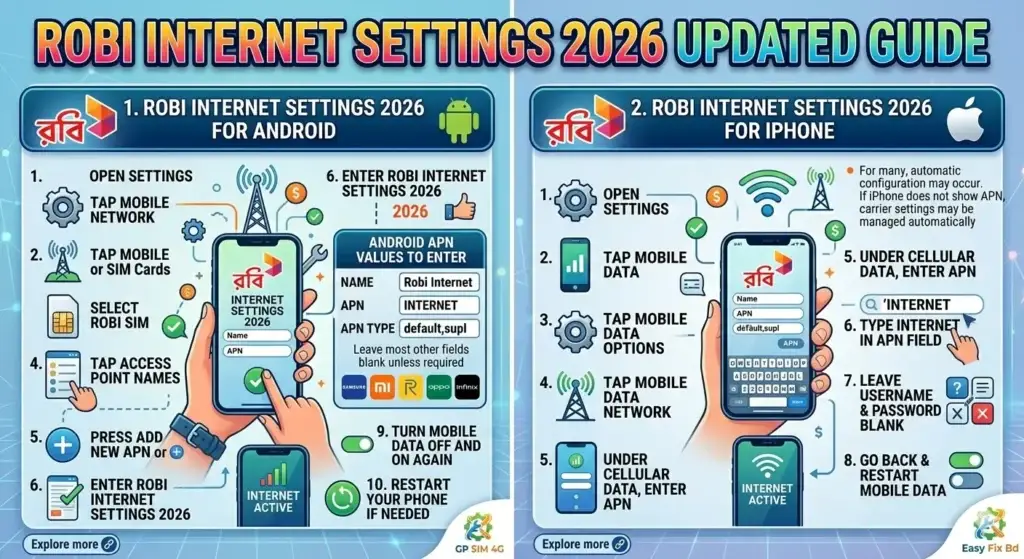
iPhone users usually do not need to enter many fields manually, but if mobile data is not working, checking APN settings can still help.
How to Set Up Robi APN on iPhone
- Open Settings
- Tap Mobile Data
- Tap Mobile Data Options
- Tap Mobile Data Network
- Under Cellular Data, enter the APN
- Type INTERNET in the APN field
- Leave username and password blank
- Go back and restart mobile data
For many users, that is enough to apply Robi Internet Settings 2026 successfully. If your iPhone does not show the APN section, carrier settings may be managed automatically.
Also Read: GP SIM 4G Internet Not Working? Frustrated? 15+ Fixes
Common Signs Your Robi APN Settings Are Wrong
You may need to recheck Robi Internet Settings 2026 if you notice any of these problems:
Mobile Data Turns On but Nothing Loads
This usually means the phone is connected to the network, but the APN is incorrect or incomplete.
Only Some Apps Work
Sometimes Facebook or WhatsApp may work while browsers or YouTube do not. That can happen when the APN profile is broken.
4G or 5G Symbol Appears but Internet Is Very Slow
In this case, the issue may be related to network mode, SIM provisioning, or an incomplete APN setup.
Internet Stops After Changing Phone
When you move your Robi SIM to another device, the old network profile may not transfer correctly. Re-entering Robi Internet Settings 2026 often fixes this.
You can Read: Jio SIM No Signal Fix: 12 Easy Ways to Restore Network Fast
Best Troubleshooting Tips After Setting Robi Internet Settings 2026
Even when the APN is correct, a few extra checks may be needed. Try these in order.
1. Restart Your Phone
This refreshes the network registration and reloads your new APN profile.
2. Toggle Airplane Mode On and Off
Turn airplane mode on for 15 to 20 seconds, then turn it off. This forces your phone to reconnect to the nearest mobile tower.
3. Make Sure Mobile Data Is Enabled
Sometimes users update the APN correctly but forget to switch mobile data back on.
4. Check Preferred Network Type
Select 4G/5G/Auto or LTE/3G/2G Auto depending on your phone. If your area has weak 4G coverage, temporarily switching to auto mode may help.
5. Remove Duplicate APNs
If multiple APNs are saved, your phone may choose the wrong one. Delete the extra profiles and keep only the correct Robi Internet Settings 2026 entry.
6. Reset Network Settings
This is useful if nothing else works. It clears saved Wi-Fi, Bluetooth, and mobile network profiles, then lets you set up Robi Internet Settings 2026 again from scratch.
7. Check Data Balance or Active Package
Sometimes the settings are correct, but your internet pack has expired or your balance is too low. Always verify that your Robi package is active.
Robi Internet Settings 2026 for 4G and 5G Users
The good news is that Robi Internet Settings 2026 usually remain the same for both 4G and 5G usage. The main difference is not the APN itself, but whether:
- your phone supports 4G or 5G
- your SIM is ready for high-speed data
- your area has proper Robi network coverage
- your network mode is set correctly
If your device supports 5G but speed is still poor, do not assume the APN is wrong. The problem may be local coverage, tower load, or handset compatibility. Robi’s 5G page also notes that device support matters when checking 5G capability. You can also check Robi’s official 5G page to learn more about supported 5G availability and device-related information.
Why Robi Internet May Still Not Work After Correct APN Setup
Sometimes users enter Robi Internet Settings 2026 perfectly but still face internet problems. Here are the most likely reasons:
Temporary Network Outage
Your local area may be experiencing congestion or maintenance.
SIM Card Problem
An old or damaged SIM may fail to connect properly to mobile data.
Software Bug
A recent phone update can sometimes affect network configuration.
Background Data Restrictions
Battery saver mode or data-saving settings may block app access.
Wrong SIM Slot Preference
On dual-SIM phones, the wrong slot may be chosen for mobile data.
So if Robi Internet Settings 2026 do not solve the issue immediately, check these device-level causes too.
Simple Tips to Improve Robi Internet Speed
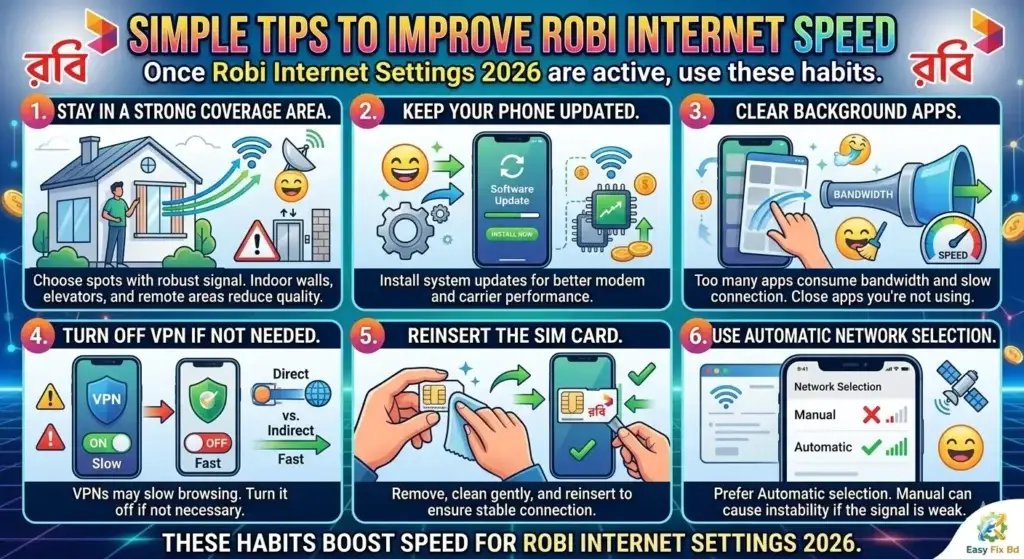
Once your Robi Internet Settings 2026 are active, use these tips to improve overall speed:
Stay in a Strong Coverage Area
Indoor walls, elevators, and remote areas can reduce signal quality.
Keep Your Phone Updated
System updates often improve modem and carrier performance.
Clear Background Apps
Too many background apps can consume bandwidth and make your internet feel slower.
Turn Off VPN if Not Needed
A VPN may slow down browsing or create connection errors.
Reinsert the SIM Card
Remove the Robi SIM, clean it gently, and insert it again.
Use Automatic Network Selection
Manual network selection can cause instability if the chosen signal is weak.
When to Contact Robi Support
If you have already checked Robi Internet Settings 2026, restarted the phone, reset network settings, and confirmed your data package is active, then it is time to contact Robi support.
Robi’s official support page lists these contact options:
- Call Center: 121 or +8801819400400
- Email: 123@robi.com.bd
- Service Center: Robi Sheba / Service Point locator available on the support page
You can place your outbound support link in this section using the official Robi support page. That makes your article more useful and trustworthy.
Quick Checklist for Robi Internet Settings 2026
Before you leave this guide, here is a fast checklist you can follow:
- APN is set to INTERNET
- Mobile data is turned on
- Correct Robi SIM is selected for data
- Preferred network mode is set to auto or 4G/5G
- Duplicate APNs are removed
- Phone has been restarted
- Data balance or internet pack is active
- SIM card is working properly
If all of these are correct, Robi Internet Settings 2026 should work on most phones without any extra changes.
Read more: How to Free Up Space in Google Photos on Android Easily
FAQ About Robi Internet Settings 2026
1. What is the APN for Robi Internet Settings 2026?
The correct APN is INTERNET according to Robi’s troubleshooting information.
2. Do I need different Robi settings for Android and iPhone?
The core APN value is generally the same, but Android usually shows more editable fields than iPhone.
3. Why is my Robi internet not working even after APN setup?
Possible reasons include no active data pack, weak network coverage, duplicate APNs, SIM problems, or wrong network mode.
4. Is Robi Internet Settings 2026 the same for 4G and 5G?
In most cases, yes. The APN remains the same, while speed and availability depend on phone support and network coverage.
5. Can resetting network settings fix Robi internet problems?
Yes, it often helps when old profiles or broken carrier settings are causing the issue.
Conclusion
Getting mobile data working does not have to be complicated. In most cases, entering the correct Robi Internet Settings 2026 and checking a few basic phone options will fix the problem quickly. Start with the APN value INTERNET, make sure your mobile data is enabled, remove duplicate APNs, and restart the device. If the issue continues, contact Robi support and ask them to verify your SIM and data service from their side.